
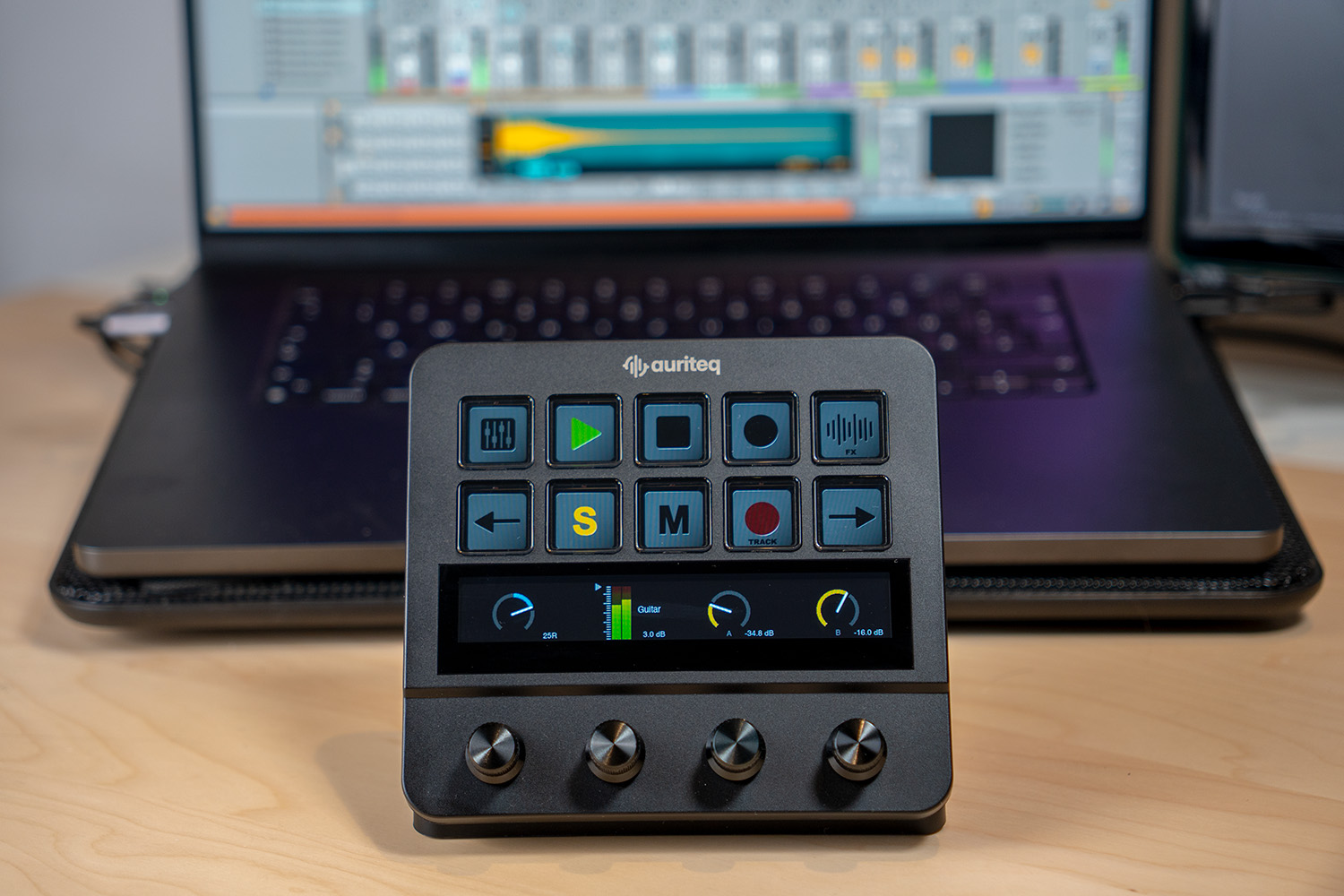
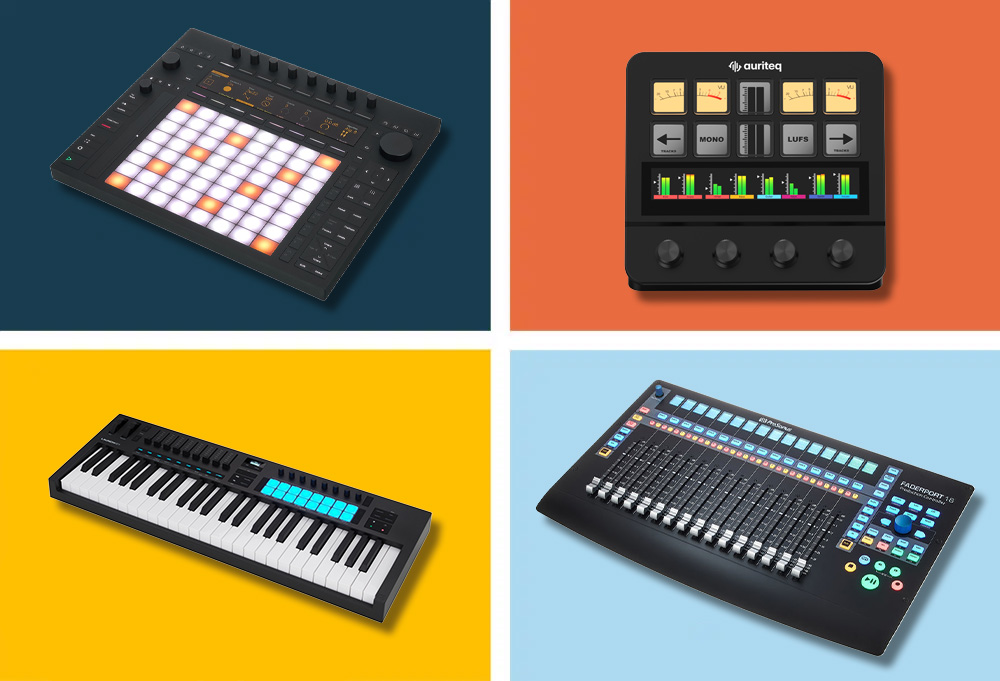
In the last few weeks, I have tested the Auriteq Flow intensively in my studio – during mixing sessions, bass recordings, and producing complete tracks in Ableton and Logic. And without exaggeration: For my workflow, it was the biggest upgrade in years. The Flow finally fulfills a promise that many MIDI controllers have failed at: It noticeably removes the computer from the creative process without having to learn a completely new operating concept.
Personally, I have long preferred working with my analog console and outboard gear – simply because nothing compares to the feel of real knobs and faders. This direct, tactile work is a huge part of creativity for me. At the same time, this is also the biggest disadvantage: No recall, no parallel work on multiple projects, and automation quickly becomes a cumbersome live action during the final bounce.
That's why I've been going completely 'in the box' more and more often lately – purely for practicality, not out of conviction.
And this is exactly where the Auriteq Flow comes in: It brings back that 'analog' feeling – but without the typical limitations. You get the tactile feel, the directness, and the creative work like on hardware, combined with all the advantages of the digital world: instant recall, flexible work between projects, and full control over automation.
In short: The Flow combines the best of both worlds – and that's exactly what makes it so special for me.
Design and build quality
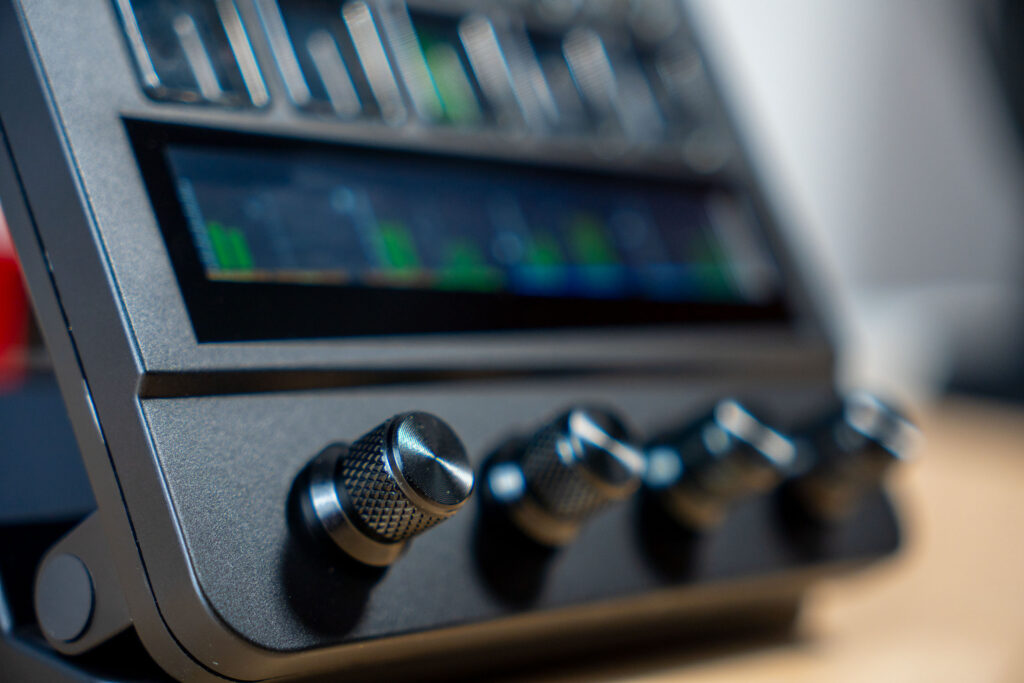
The first thing you notice when you unpack the Flow is its weight. This is definitely not a plastic toy. It feels like a serious piece of studio equipment – a device you place on your desk and leave there for years. The knobs have a pleasant resistance, the buttons provide clean tactile feedback, and the touchscreen responds reliably.
I've experienced controllers that felt great in the store but started to wobble after a few months of daily use. With the Flow, I don't have that concern. The entire construction gives the impression of professional tools. The layout is compact but very logical – once you understand the individual areas, your hands almost automatically find the right controls.
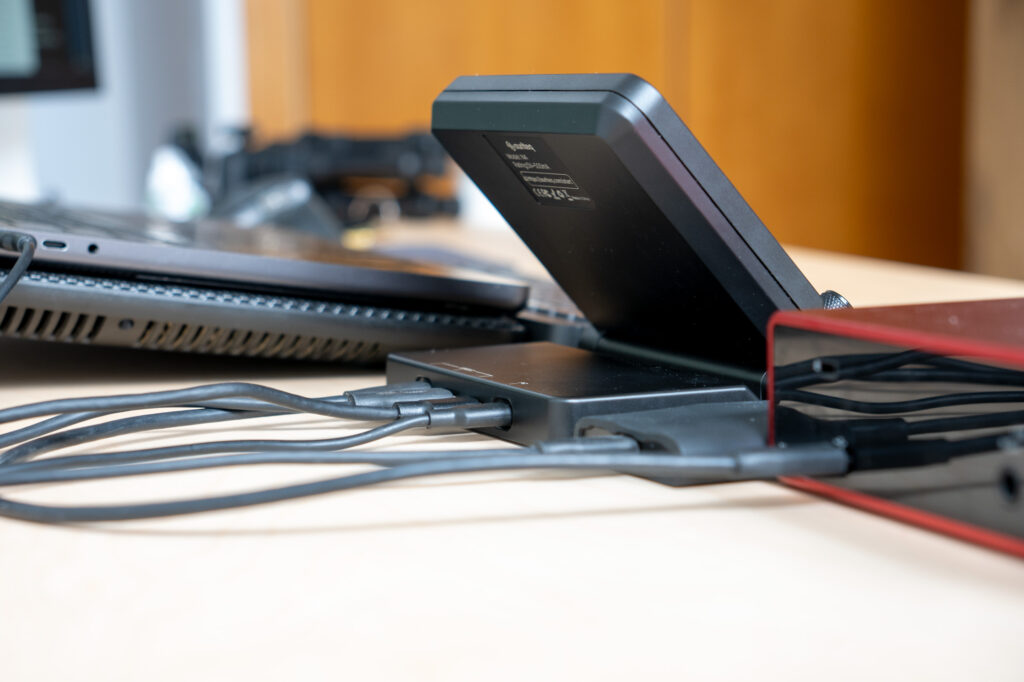
The integrated USB hub also deserves a mention. Two USB-3 ports and two USB-C connections directly on the device immediately helped me in everyday life. You can, for example, connect the audio interface or the hard drive there. It initially sounds like a small thing, but it's extremely practical in the studio. Those who don't constantly have too few USB ports today are rather the exception.
Setup and first impressions
I'll be honest: I had mentally prepared myself for a tedious setup process. Almost every controller I've owned so far involved driver installations, MIDI mapping, firmware updates, and at least one moment of "Why isn't this working now?" With the Flow, it was different. I connected it via USB, installed the desktop app, opened Ableton, and it was just there. Parameters appeared on the display, the faders responded, the transport control worked.
No configuration. No MIDI-learn session. No digging through documentation to find out which CC number belongs to which knob.
I immediately loaded an existing project – with all plugins and instruments to try everything out – and the parameters of all plugins were already mapped and available on the touchscreen. I swiped through the parameter pages of Serum without even touching the mouse. At that moment, it was clear to me what this controller is really about.
Plugin control: This is where the Flow shows its strengths
This feature convinced me, and that's why I want to go into more detail here. For me, this is the point where the Flow really stands out.
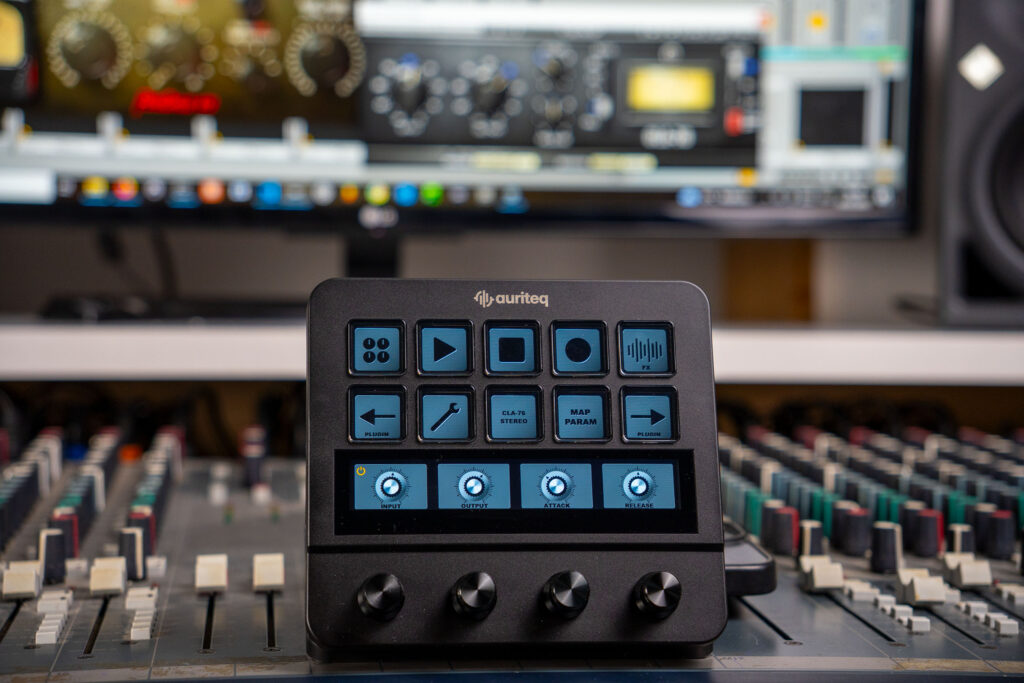
Every DAW controller I've used before had one of two problems: Either the control only worked really well with the DAW's own plugins, or you had to painstakingly map each third-party plugin by hand. The Flow does neither. It automatically recognizes parameters – whether Serum, FabFilter, Valhalla, Soundtoys, or Kontakt.
You open a plugin, the parameters appear on the touchscreen, and the physical knobs correspond exactly to what is currently displayed on the screen. Additionally, the virtual knobs on the touchscreen show the current position of these parameters. So I don't even have to look at my screen to control the plugin.
The touchscreen also allows you to switch between multiple parameter pages. This means you are not limited to eight knobs and thus eight values at the same time. A complex synth like Serum brings dozens of relevant parameters, logically distributed over several pages. You swipe, turn, swipe further. It almost feels like each plugin has its own specially built hardware interface.
It gets really exciting with custom mapping. If you don't like the preconfigured mappings, you can easily remap parameters: hold MAP for 2 seconds, choose the desired knob, move the parameter in the plugin, done. This mapping remains saved – across sessions and projects. My standard assignment for FabFilter Pro-Q was set up in maybe thirty seconds, and since then I haven't had to worry about it.
Last week, I was working on a bass-heavy track and constantly switched between different saturation settings in Decapitator and the lows in Pro-Q 3. With the mouse, this usually means: switching plugin windows, losing focus, interrupting your own flow. With the Flow, the most important parameters of both plugins were simultaneously under my fingers. I could make decisions by ear and in real-time without having to stare at the screen.
Loading plugins, effects, and presets
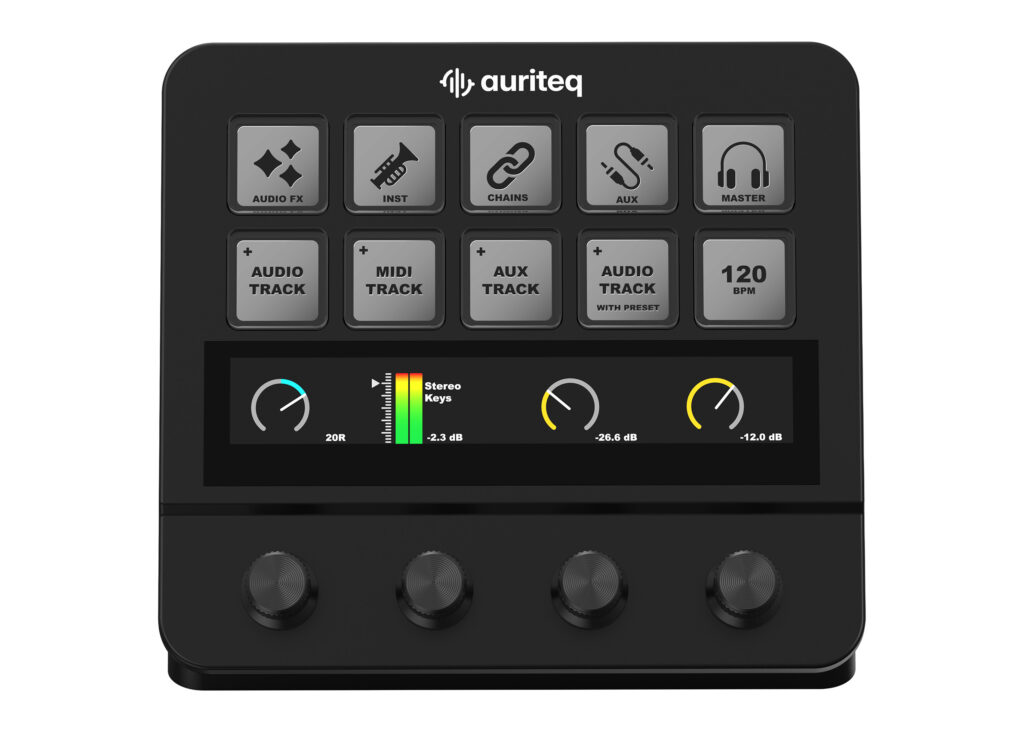
Another bottleneck in everyday life, which I almost took for granted before, is loading plugins and effects. Normally, you click on the channel, search for the insert slot (depending on the DAW), open menus or folders, find the right plugin, load it, and then navigate to the desired preset you want to start with. With the Flow, this is reduced to a button press. Effects, instruments, and presets are organized in folders on the device: scroll, select, load, done.
I realized how much this matters in everyday life during a vocal session. A singer was in the booth, and I wanted to quickly add a de-esser and another reverb to the monitoring chain. Instead of clicking through menus while waiting on the other side of the glass, I had both effects loaded in a few seconds.
Saving and recalling entire plugin chains is also particularly strong. I have a vocal chain that is my starting point in almost every session – a specific auto-tune, compressor, EQ, de-esser, and saturation with settings I've refined over months. With the Flow, I saved this entire chain once and can now load it immediately in any project. One button press, and the complete chain is there.
Mixing: Precision you can really hear
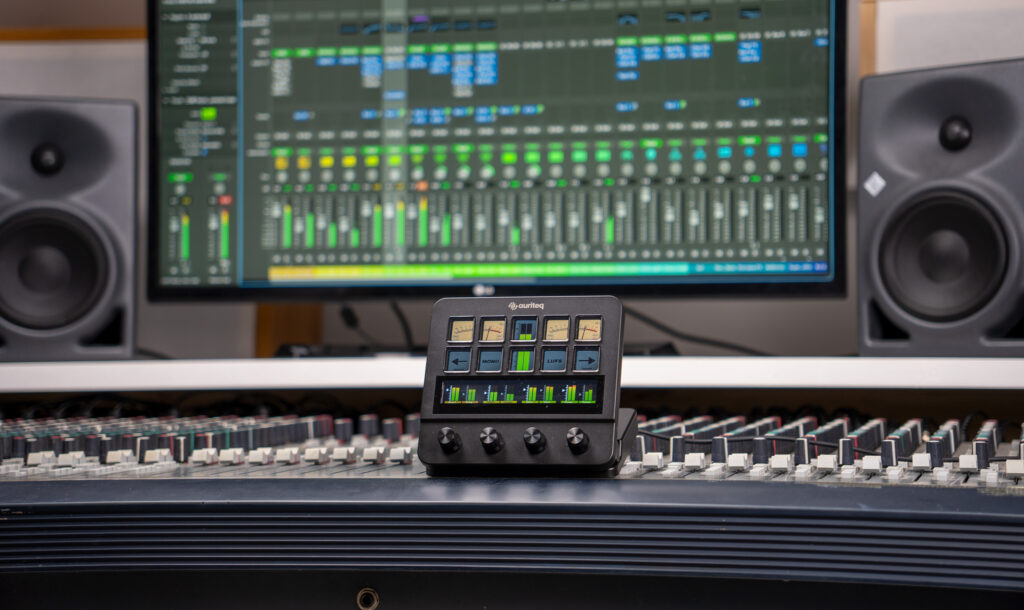
I admit: I was initially skeptical about the mixing functions. I've worked with motorized fader controllers, and even though they look impressive, the resolution often felt like a compromise. You want to correct half a dB, and the fader jumps in visible steps. With the Flow, I was pleasantly surprised. Volume, panning, and sends can be adjusted remarkably evenly and precisely – with a finesse I don't know from typical MIDI controllers.
The eight-track mixer scene gives direct access to eight channels simultaneously, including real-time level indicators on the display.
Panning has also changed a lot for me. Setting a stereo point with a physical knob simply feels better than dragging a small point on the screen with the mouse. It sounds trivial, but it leads to different decisions. I've noticed that I handle stereo width more consciously and creatively, simply because experimenting is easier.
The send control is just as convincing. Setting up reverb and delay sends for multiple tracks, adjusting the balance between wet and dry – all of this can be done directly on the controller without having to first search for the right small knob in the DAW's mixer view.
Metering: A serious tool
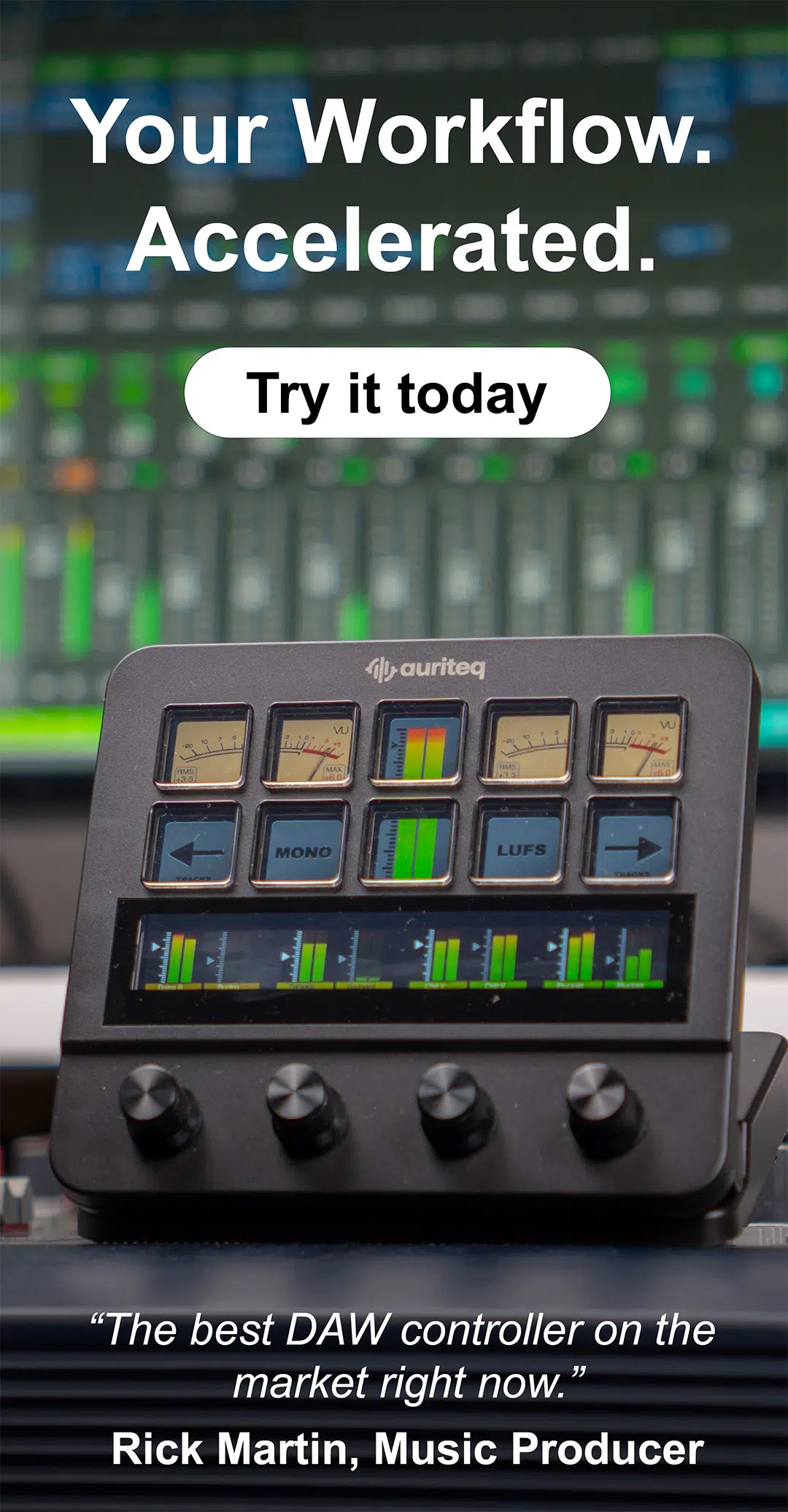
Honestly, I didn't expect this point. I expected simple level indicators, maybe a peak value. Instead, you get a complete metering suite: VU meters for tracking and comprehensive LUFS metering with integrated loudness, short-term loudness, loudness range, and dynamic displays. The whole thing works via a supplied VST/AU plugin that runs in the DAW's master channel and sends the data to the Flow's display.
For anyone who wants to master or at least cleanly bring their productions to the loudness targets of streaming platforms, this is a seriously useful feature. What's important to me: This is not a gimmick or a simplified beginner display. This is the same metering standard used in broadcasting and professional mastering. Having it directly integrated into the hardware, visible in real-time and permanently, is a real workflow advantage.
Recording and Self-Recording
As a bassist, I regularly record myself. And the constant problem with self-recording is the trip to the computer. You set up the microphone or instrument, go back to the computer, arm the track, press record, go back into position, and then realize that the pre-roll isn't right yet. Or the input level is too high. Or the entry point doesn't fit. Every take means another trip to the screen.
The Flow removes exactly this friction loss from the process. I can arm tracks, start and stop recordings, control levels, and navigate to punch-in points – all directly on the controller. I set up my bass for a session, placed the Flow within reach, and recorded twelve takes without getting up even once. During this, I could see my input peaks on the level displays, adjust the monitoring, and set markers for spots I wanted to listen to again later.
For anyone who records themselves – whether guitar, bass, vocals, or something else – this alone can be a strong argument for the controller. The time savings are real, but something else is more important: You stay in the creative state. You don't constantly interrupt your concentration to walk across the room and click something. You play, record, listen back, and continue.
Timeline Navigation and Session Management
The transport and navigation functions are also well thought out. Playhead control, zooming in and out of the timeline, jumping between markers, or navigating to specific points – all of this is available and responds without noticeable delay.
I found the marker navigation particularly helpful during arrangement sessions. I set markers for intro, verse, chorus, bridge, and outro and could then jump directly between these points from the Flow while listening to the arrangement. In combination with the mixer controls, I could jump to the chorus within seconds, adjust the vocal level, go back to the verse, and compare – all without picking up the mouse.
The zoom control also sounds like a small detail at first, but it makes a big difference in everyday life. Quickly zooming into a transient, zooming back out to the entire song structure – with a physical knob, I find this faster and more targeted than with a trackpad or scroll wheel.
Shortcuts and Macros
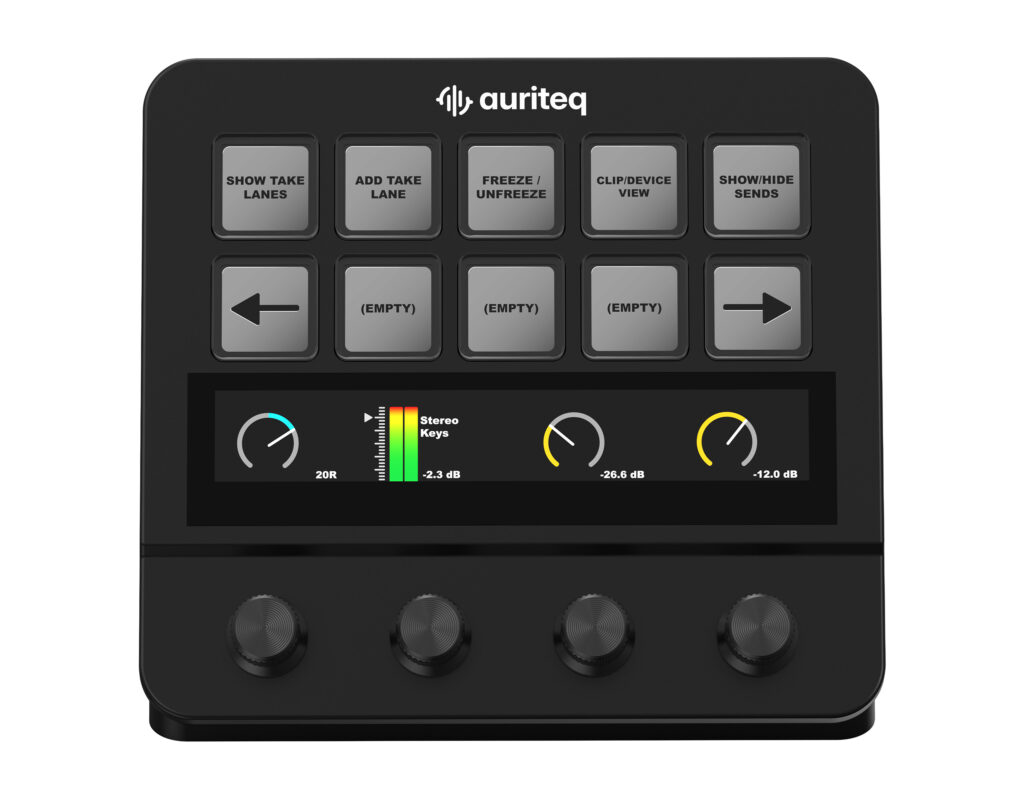
Beyond pure DAW control, the Flow also functions as a universal macro controller. Every keyboard shortcut can be assigned to a physical button, and this can be configured via drag & drop in the desktop app. I've created macros for tasks I constantly need – like switching between reference track and mix, opening preferred plugin folders, switching between monitor outputs, or even muting my microphone in calls.
This keeps the Flow useful even when no DAW is open. I now also use it for shortcuts in Premiere Pro and Photoshop and in some browser-based tools. This is not a core feature, but a real bonus that extends the practical value of the hardware beyond music production.
DAW Compatibility
I mainly work in Ableton Live, but I deliberately tested the Flow in Logic Pro and a bit in FL Studio to see the differences. The native integration with all three DAWs actually feels consistent and not like many other controllers that supposedly support "multiple DAWs" but are obviously developed for just one of them.
Who is it for?
If you are completely satisfied with mouse and keyboard and don't feel slowed down in your workflow, you might not immediately see the added value.
But if, like me, you've ever felt that your DAW stands between you and the music, then the Flow is a serious option. It's for producers who want to work more with their hands again. For engineers who want reliable metering without overloading their screen with additional windows. For musicians who record themselves and don't want to constantly run to the computer. And for anyone who has ever lost a good idea because they got stuck in menus and sub-windows at the wrong moment.
Conclusion
From my perspective, the Auriteq Flow surpasses every DAW controller I've used so far – and there have been quite a few over the years. It delivers everything you expect from a high-quality control surface: faders, knobs, transport control, and mixing. At the same time, it brings a quality in plugin integration, professional metering, and workflow optimization that I haven't experienced in this form in this category before.
What surprised me the most was not a single feature, but the overall effect. After a week with the Flow, returning to pure mouse work suddenly felt slow and surprisingly detached. The tactile, direct approach not only saves time – it also changes how you make decisions. You listen more closely, click less, and stay in the creative zone longer.
„The best studio equipment is the kind that eventually disappears: You no longer think about the tool, only about the music. That's exactly what the Auriteq Flow achieves.“
If you take your production setup seriously and are looking for one of the most powerful DAW controllers on the market, then you should take a closer look at the Flow. The complete feature overview and ordering option can be found here:


 English
  German
  French
  Dutch
Dutch  Spanish
  Portuguese